
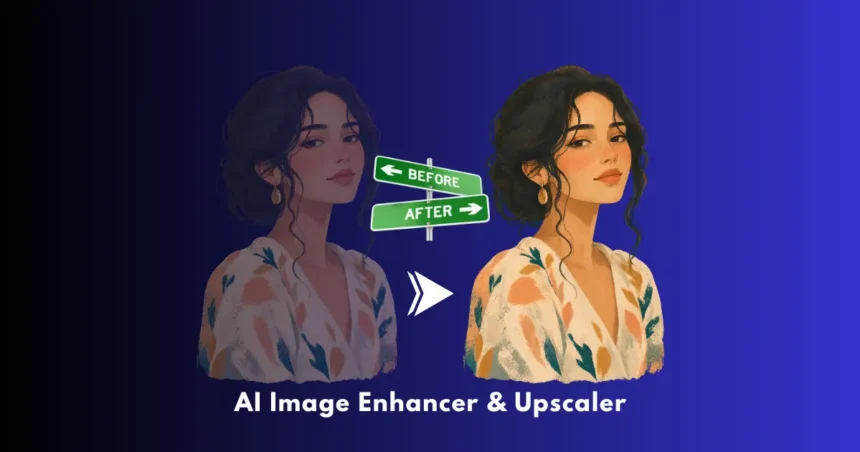
Have you ever found the perfect photo only to discover that it is too small, blurry, noisy, or heavily compressed? An AI image enhancer and upscaler can help turn that low-resolution file into a cleaner, sharper, larger image without relying on ordinary pixel stretching.
Modern AI upscalers can do much more than increase dimensions. Depending on the tool, they can improve faces, reduce noise, repair compression artifacts, sharpen edges, restore old photographs, enhance products, and prepare images for print.
But not every upscaler is designed for the same job. Some prioritize photographic accuracy, while others are better for creative artwork or ecommerce images.
Below, we compare 10 strong options and explain where each one fits best.
What Is an AI Image Enhancer and Upscaler?
An AI image enhancer uses machine-learning models to analyze an image and improve characteristics such as sharpness, noise, color, contrast, and visible detail. An AI upscaler goes one step further by increasing the image’s resolution while predicting additional visual information.
Traditional resizing mainly interpolates existing pixels. AI upscaling analyzes patterns such as edges, textures, faces, and objects to generate a more convincing enlarged result.
For example, if you have a small 800 × 800 product image, an AI upscaler may produce a substantially larger version while attempting to reconstruct cleaner edges and surface detail.
However, there is an important limitation: AI enhancement is not the same as recovering the original information.
If a face is severely blurred or text is completely missing, the AI may generate something that looks plausible without being factually accurate.
Practical rule: Use AI enhancement confidently for design, marketing, social media, and creative work, but carefully review results when accuracy matters.
How AI Image Upscaling Works
Most AI upscalers follow a relatively simple workflow:
Upload → Analyze → Reconstruct → Enhance → Export
The underlying model examines the source image and estimates what higher-resolution pixels should look like.
Depending on the software, the model may specialize in:
- Portraits
- Landscapes
- Low-resolution photographs
- Anime and illustrations
- Digital artwork
- Text and logos
- Product photography
- Old photographs
- Noisy images
- Compressed images
This specialization matters.
A model designed for faces may produce a better portrait than a general-purpose model. Likewise, an illustration may benefit from a different model than a photograph.
10 Best AI Image Enhancer & Upscaler Tools
1. Topaz Gigapixel
Best for: Professional photography, restoration, printing, and high-quality enlargement


Topaz Gigapixel is one of the strongest choices when image quality and control matter more than having the simplest possible workflow.
It is designed specifically around image enlargement and includes different processing approaches for photography, artwork, faces, text, and low-resolution images.
One of its biggest advantages is that users can choose between more conservative enhancement and models that introduce stronger reconstructed detail.
The software can enlarge images by substantial factors, making it useful for large prints, photography restoration, creative projects, and images that need to survive aggressive cropping.
Another advantage is local processing on supported systems. That can be valuable when you are working with private photographs or large collections and do not want every source image handled through a browser-based service.
Why choose Topaz Gigapixel?
- Designed specifically for professional image enlargement
- Supports high enlargement levels
- Specialized processing models
- Useful for photography and restoration
- Suitable for large-format printing
- Can process images locally on supported hardware
Potential drawbacks
- Requires desktop software
- More advanced controls can take time to learn
- Hardware affects local processing performance
- Strong enhancement modes can alter small visual details
Best for: Photographers, designers, restoration specialists, and users who want maximum control.
2. Fotor
Best for: Beginners, social media graphics, everyday photos, and batch enhancement


If you want something straightforward, Fotor is an easier starting point.
Its AI image enhancement tools can enlarge images while improving characteristics such as sharpness, color, brightness, and contrast.
Fotor is particularly convenient for users who already need other photo-editing features. After enlarging an image, you can continue editing rather than moving between several applications.
The platform also supports batch workflows, which can be useful for content creators and ecommerce users dealing with multiple images.
It can handle different types of visual content, including portraits, product photos, illustrations, older photographs, logos, and social media graphics.
Why choose Fotor?
- Beginner-friendly interface
- Supports 2x and 4x enlargement
- Batch image processing
- Works across multiple device types
- Includes broader photo-editing features
- Useful for social media and marketing images
Potential drawbacks
- Fewer advanced controls than specialist desktop software
- Maximum resolution depends on the workflow
- Professional restoration users may want more model-level control
Best for: Beginners, creators, marketers, and people who want enhancement plus editing.
3. Deep Image AI
Best for: Ecommerce, automated workflows, APIs, and large image collections
Deep Image AI takes a more workflow-oriented approach to image enhancement.
It offers conventional and generative approaches to increasing image resolution, along with features for reducing noise, improving faces, correcting colors, and modifying backgrounds.
Its business-oriented features make it particularly interesting for ecommerce companies, marketplaces, real-estate businesses, and developers who need image processing at scale.
The API can also be useful when image enhancement needs to become part of an automated workflow rather than a manual editing process.
Key strengths
- AI image enlargement
- Generative enhancement
- Batch processing
- API availability
- Noise and blur reduction
- Face enhancement
- Color correction
- Background-related tools
Deep Image AI supports enlargement of up to 16x and very large output files in supported workflows.
Watch out for
Generative enhancement can introduce details that weren’t clearly visible in the original. This is especially important for products, documents, faces, and images where visual accuracy matters.
Best for: Ecommerce teams, developers, agencies, and high-volume image workflows.
4. PromeAI
Best for: Architecture, creative artwork, product visuals, and designers


PromeAI is more than an upscaler. It combines image enhancement with a broader collection of creative AI tools.
Its HD Upscaler provides 2x and 4x enlargement options and can be particularly useful for architectural visualizations, interior concepts, product imagery, gaming artwork, and AI-generated graphics.
The advantage here is workflow continuity. A designer can enhance an image and then continue with related operations such as editing, relighting, background generation, or outpainting.
That makes PromeAI especially interesting for creative professionals who need more than resolution improvement.
Highlights
- 2x and 4x enlargement
- Creative image enhancement
- Architecture-focused workflows
- Relighting
- Outpainting
- Image editing
- Background generation
- Additional generative tools
Limitations
The broader creative platform can feel unnecessary if you only need occasional image enlargement.
Also, stronger creative processing can change textures and small details.
Best for: Architects, designers, marketers, and AI-art creators.
5. AVCLabs Photo Enhancer AI
Best for: Portraits, old photographs, denoising, and desktop enhancement
AVCLabs Photo Enhancer AI is designed around improving photographs rather than simply increasing their dimensions.
Its tools cover image enlargement, noise reduction, sharpening, face recovery, colorization, and other restoration-oriented tasks.
The software supports enlargement of up to 400% and includes batch processing for users who need to work through multiple files.
A useful aspect of this approach is that different image problems can be addressed separately. An old photograph may require denoising and face enhancement, while a modern product photograph may primarily need enlargement and sharpening.
Key features
- Up to 400% enlargement
- Face enhancement
- Noise reduction
- Image sharpening
- Old-photo restoration
- Colorization
- Batch processing
- Windows and macOS support
Pros
- Strong collection of restoration features
- Useful for portraits
- Desktop workflow
- Batch processing
- More than simple upscaling
Cons
- Requires installation
- Performance depends partly on computer hardware
- Some users may prefer a browser-based workflow
Best for: Photo restoration, portraits, family photographs, and desktop users.
6. Let’s Enhance
Best for: Printing, ecommerce, marketing materials, and large images
Let’s Enhance is built with practical business use cases in mind.
The platform can enlarge images significantly and supports very large output sizes in supported plans and workflows.
That makes it particularly useful when a small digital asset needs to become a poster, print, product graphic, merchandise design, or other high-resolution visual.
It also provides tools for sharpening, color correction, image enhancement, and background-related editing.
Where it stands out
- Large image enlargement
- Print-oriented workflows
- Ecommerce image enhancement
- Sharpening
- Color correction
- Restoration features
- Background removal
- Business-oriented workflows
The platform can support enlargement of up to 16x under supported settings, while maximum output dimensions vary by workflow and plan.
What to consider
Large enlargement does not automatically mean better quality. If the source is extremely poor, aggressive enlargement may create artificial-looking textures.
Best for: Ecommerce sellers, marketers, printers, real-estate professionals, and businesses.
7. getimg.ai
Best for: Creative AI workflows and users who want multiple upscaling approaches
getimg.ai provides both traditional and creative approaches to image enlargement.
This distinction is important.
A conventional upscaling workflow generally tries to stay close to the source. Creative enhancement can introduce additional visual information to make the enlarged image appear more detailed.
The platform also supports batch processing and integrates image generation and other creative AI capabilities.
Supported workflows can reach high output resolutions, including 16K in applicable configurations.
Key benefits
- Traditional and creative upscaling
- Multiple models
- Batch processing
- High-resolution output
- Browser-based workflow
- Broader AI image capabilities
Limitations
The number of available creative tools can make the platform feel more complicated than a dedicated upscaler.
Creative models can also modify small details.
Best for: AI artists, designers, content creators, and people who want an image-generation ecosystem.
8. HitPaw FotorPea
Best for: One-click photo improvement, portraits, old photos, and batch processing
HitPaw FotorPea is a desktop image enhancement application for Windows and macOS with a broad selection of AI-powered processing models.
Instead of treating every image the same way, it offers specialized processing for different problems.
Depending on the image, you can work with features aimed at:
- Face enhancement
- Noise reduction
- Image enlargement
- Old-photo restoration
- Colorization
- Low-light images
- Text
- Scratches
- Sharpening
This makes it a useful general-purpose option when your images need several types of correction.
Advantages
- Multiple specialized AI models
- Portrait enhancement
- Old-photo restoration
- Batch processing
- High-resolution output
- Desktop workflow
- Photoshop-related workflow support
Disadvantages
- Advanced features may require experimentation
- One-click enhancement can sometimes become too aggressive
- Desktop installation is required for the full application experience
Best for: Users who want an all-purpose photo enhancement application.
9. Icons8 Smart Upscaler
Best for: Fast browser-based image enlargement
Icons8 Smart Upscaler focuses on simplicity.
Instead of presenting users with a large number of technical controls, it automates much of the enhancement process.
The service can enlarge images while applying sharpening and noise reduction, making it useful for website graphics, illustrations, presentations, social media assets, and everyday photographs.
Its connection with the broader Icons8 ecosystem can also be helpful for designers who already use its creative resources.
Advantages
- Simple interface
- Browser-based
- Automated enhancement
- Sharpening
- Noise reduction
- Useful for design workflows
- Integration with Lunacy
Limitations
- Fewer controls than professional applications
- Less suitable for complex restoration
- Export limitations can vary by plan
Best for: Designers and users who want fast, uncomplicated enhancement.
10. BasedLabs
Best for: Beginners and creators using a broader AI media platform
BasedLabs takes a simple approach to image upscaling while placing the feature inside a larger AI media platform.
Its image upscaler can enlarge images by up to 4x, while the wider service provides access to image-generation, editing, and video-related capabilities.
This makes it more attractive to creators who want to move between different AI media tasks without using separate platforms.
Key features
- Up to 4x enlargement
- Image enhancement
- AI image models
- Image editing
- Face-related tools
- Video-generation capabilities
- Browser-based workflow
Limitations
BasedLabs is not as specialized as a dedicated professional restoration application.
If your only requirement is high-end photographic enlargement, a specialist such as Topaz Gigapixel may provide a better workflow.
Best for: AI creators who want upscaling as part of a broader creative toolkit.
Quick Comparison of the 10 AI Image Upscalers
| Tool | Best For | Main Strength | Platform |
|---|---|---|---|
| Topaz Gigapixel | Professional photography | High-quality enlargement and control | Desktop |
| Fotor | Beginners | Easy enhancement and editing | Web/Desktop/Mobile |
| Deep Image AI | Business workflows | API, batch processing, enhancement | Web/API |
| PromeAI | Creative design | Upscaling plus creative tools | Web |
| AVCLabs Photo Enhancer AI | Restoration | Portraits, denoising, restoration | Desktop |
| Let’s Enhance | Printing & ecommerce | Large outputs and business workflows | Web |
| getimg.ai | AI creators | Multiple upscaling approaches | Web |
| HitPaw FotorPea | Photo repair | Specialized enhancement models | Desktop |
| Icons8 Smart Upscaler | Quick enhancement | Simple browser workflow | Web |
| BasedLabs | AI creators | Upscaling within an AI media suite | Web |
Which AI Image Upscaler Should You Choose?
The “best” tool depends on the original image and what you plan to do with it.
For professional photography
Choose Topaz Gigapixel if image quality, model selection, and detailed control are your priorities.
For beginners
Fotor is a practical starting point because the workflow is straightforward and includes additional editing capabilities.
For ecommerce
Consider Deep Image AI or Let’s Enhance if you have many product images or need business-oriented processing.
For old photographs
AVCLabs Photo Enhancer AI and HitPaw FotorPea are worth considering because they include restoration-oriented features beyond basic enlargement.
For AI-generated artwork
PromeAI and getimg.ai are useful when enhancement is part of a larger creative workflow.
For quick online enhancement
Icons8 Smart Upscaler is a simple option when you don’t need extensive controls.
AI Upscaling vs Traditional Image Resizing
| Factor | Traditional Resizing | AI Upscaling |
|---|---|---|
| Enlarges dimensions | Yes | Yes |
| Predicts new detail | Limited | Yes |
| Texture reconstruction | Basic | More advanced |
| Face enhancement | No | Often available |
| Noise reduction | Usually separate | Often integrated |
| Restoration | Limited | Often available |
| Creative reconstruction | No | Some tools offer it |
| Processing control | Usually simple | Varies by tool |
The key difference is that traditional resizing primarily calculates new pixels from existing information.
AI upscaling attempts to understand the image and reconstruct a more visually convincing result.
That does not mean AI output is always more accurate.
For important images, compare the enlarged result with the original before publishing.
How to Get Better AI Upscaling Results
The quality of your final image depends heavily on the starting file.
1. Start with the highest-quality source available
Do not repeatedly upscale an already-upscaled JPEG.
Find the original RAW, PNG, TIFF, or highest-quality source whenever possible.
2. Don’t automatically choose the maximum enlargement
A 4x result isn’t necessarily better than a 2x result.
For some photographs, aggressive enlargement can create unnatural textures.
3. Choose a model based on the image
Use portrait-oriented processing for faces and photographic models for regular photos.
Illustrations and anime images may need completely different processing.
4. Inspect small details
Always check:
- Eyes
- Teeth
- Hair
- Fingers
- Text
- Logos
- Product labels
- Architectural lines
- Repeating patterns
- Reflections
These areas can expose AI-generated artifacts quickly.
5. View the result at its intended size
A highly detailed image can look impressive at 400% zoom but completely different when used as a website thumbnail.
Judge the image where people will actually see it.
Common AI Upscaling Mistakes
Mistake 1: Assuming AI can recover missing information
AI can estimate missing detail. It cannot guarantee that the generated detail represents the original scene.
Mistake 2: Using the same model for every image
A portrait, product photograph, illustration, and old newspaper scan have different requirements.
Mistake 3: Ignoring text
AI models can distort tiny letters and logos. Always inspect commercial graphics manually.
Mistake 4: Overprocessing faces
Face enhancement can sometimes make people look noticeably different.
For personal photographs and documentary material, compare the enhanced face against the original.
Mistake 5: Treating resolution as quality
Increasing a 500 × 500 image to a huge canvas does not automatically make it a high-quality photograph.
Resolution and visual information are related, but they are not the same thing.
A Simple AI Upscaling Workflow
If you’re unsure which settings to use, start with this process:
Step 1: Find the best original file.
Step 2: Determine the final purpose: web, social media, ecommerce, or print.
Step 3: Select an appropriate AI model.
Step 4: Start with 2x enlargement.
Step 5: Compare the output against the original.
Step 6: Test 4x only if additional resolution is genuinely required.
Step 7: Inspect faces, text, edges, and textures.
Step 8: Export in an appropriate high-quality format.
Step 9: Keep the untouched original as your master file.
This workflow reduces the risk of producing an image that looks impressive but contains unwanted AI artifacts.
Frequently Asked Questions
What is the best AI image upscaler?
There is no universal winner because different tools target different workflows. Topaz Gigapixel is particularly suitable for professional photography and restoration, while Fotor is easier for beginners. Deep Image AI and Let’s Enhance are useful for business and high-volume workflows.
Can AI increase image resolution?
Yes. AI upscalers can increase the pixel dimensions of an image while attempting to reconstruct additional detail. The result can look substantially sharper than conventional resizing, although the AI-generated details are predictions rather than guaranteed recovery of the original information.
Is AI upscaling better than normal resizing?
For many low-resolution images, AI upscaling can produce a more convincing result because it analyzes image content rather than simply interpolating pixels. However, results vary considerably depending on the source quality, model, and image type.
Can AI upscalers fix blurry photos?
They can reduce some forms of blur and improve perceived sharpness, but there are limits. If the original image contains very little usable information, an AI model may generate plausible-looking details rather than accurately recover what was captured.
Can AI upscale old photographs?
Yes. Several tools combine enlargement with denoising, sharpening, face enhancement, scratch removal, and colorization. AVCLabs Photo Enhancer AI and HitPaw FotorPea are particularly relevant for this type of workflow.
Which AI upscaler is best for ecommerce?
Deep Image AI and Let’s Enhance are strong candidates for ecommerce because their workflows are suited to repeated image processing and business use. The right choice depends on image volume, required output dimensions, automation requirements, and whether an API is needed.
Does AI upscaling change the original image?
The original file is not inherently changed when you export an enhanced copy, but the resulting image can contain newly generated visual details. For that reason, keep the untouched source file and treat the AI-enhanced version as a separate derivative.
Can AI make a low-quality image perfect?
No. AI can significantly improve the appearance of many images, but it cannot guarantee perfect recovery of information that was never captured. Extremely blurry, heavily compressed, or tiny images can still have limitations after enhancement.
Conclusion
AI image enhancement has moved well beyond simple image resizing. Today’s tools can enlarge photographs, clean up noise, improve faces, restore older pictures, sharpen products, and prepare graphics for much larger displays.
AI image enhancement has moved well beyond simple image resizing. Today’s tools can enlarge photographs, clean up noise, improve faces, restore older pictures, sharpen products, and prepare graphics for much larger displays.
The right choice depends on your workflow.
Topaz Gigapixel is the strongest choice to consider for professional enlargement and restoration. Fotor is easier for everyday users. Deep Image AI and Let’s Enhance make sense for business workflows, while AVCLabs and HitPaw FotorPea are useful when restoration features matter.
For creative AI work, PromeAI and getimg.ai offer broader ecosystems, while Icons8 Smart Upscaler and BasedLabs provide simpler alternatives.
The biggest lesson is simple: don’t judge an AI upscaler by how many times it can enlarge an image. Judge it by how accurately and naturally it handles the details that matter.

AiVoogle – AI Tutorials & AI Tools
AiVoogle is an AI-focused platform sharing practical AI tutorials, AI tools, guides, reviews, and the latest trends in artificial intelligence. Our goal is to make AI simple, useful, and accessible for everyone—from beginners and creators to marketers, developers, and businesses.
The AiVoogle team researches and covers the latest AI tools and technologies to help readers discover the right tools and learn how to use AI effectively.
Focus: AI Tutorials | AI Tools | AI Guides | AI News | AI Reviews